Gaming desk cable management is not about making every wire disappear. It is about giving power, display, charging, and accessory cables a clear route so they do not catch your chair, cover the desk, or turn a quick reset into a frustrating search.
Start with the cables you use every time you play. That usually means power for the PC or console, a monitor cable, a keyboard or mouse cable, and one or two charging leads. Everything else can wait. When you try to solve every extra cord at once, the setup becomes more complicated than it needs to be.
A good result should still be easy to live with. You need to be able to unplug a controller, clean behind the desk, move the chair, and spot the one cable that needs attention. This guide uses a simple order that works especially well in bedrooms, apartments, and any setup that shares space with work or school.
1. Separate Power From the Cables You Touch Every Day
Begin at the outlet and work toward the desk. Keep the cables that supply power in a rear or under-desk route, then keep the cables you handle often, such as a phone lead or controller cable, within easy reach at one side of the setup. This makes the desk feel calmer because the permanent wiring and the daily-use wiring are no longer competing for the same space.
Before you attach clips or ties, unplug what you can and follow each cable from one end to the other. Group power, display, and charging runs by where they are going, not by whether the cords happen to lie close together. That small bit of planning makes it much easier to change one device later without disturbing the whole desk.
Use power strips, extension cords, and chargers according to their instructions, and replace cords that are damaged or loose. Cable management should make a setup easier to inspect, not hide a problem behind furniture. Leave outlets, switches, and connections reachable enough to check without pulling the entire desk apart.

2. Create One Route From the Desk to the Wall
Most cable clutter happens when every cord chooses its own path to the outlet. Give the setup one main route instead. For a desk against a wall, that route usually runs along the rear edge, down one back leg, and toward the nearest outlet. For a corner desk, choose the least visible side and keep the chair side clear.
Cable clips, reusable hook-and-loop ties, sleeves, and an under-desk tray can help, but use only the pieces that solve a real routing problem. A few loose guides are better than a tightly packed bundle that makes a single cable impossible to replace. Leave enough slack for a monitor stand, a rolling desk, or any device you regularly pull forward.
If a cable has to cross open space, make that the exception instead of the default. Route it behind the desk first, then look for a shorter cable, different outlet placement, or a desk position that reduces the distance. Fewer long runs means fewer opportunities for a chair wheel, foot, or vacuum to catch the line.

3. Give Charging a Single, Predictable Home
A charging cable becomes clutter when it has no job between sessions. Choose one rear corner or side zone for a phone, controller, headset, earbuds, or handheld device. The goal is not to display every cable. It is to know exactly where the one you need will be when a battery runs low.
Keep the charging zone outside the keyboard-and-mouse area. A cable that lies across the active part of the desk will always feel temporary, even when it is plugged in every day. A small stand, tray, or drawer can give the device a place to land while the cable stays behind it.
Store backup cords separately from the cables you use all week. A shallow drawer, pouch, or labeled bin is enough for spare adapters, travel chargers, and older leads. Once extra cords are out of sight, it becomes much easier to see whether the active setup is actually working.
4. Keep the Chair Path and Foot Space Clear
The best cable route is one you do not have to think about when you sit down. Look at the space under the desk from the chair's point of view. Cords should not run where your feet naturally rest, and they should not be close enough for chair wheels to pull them as you stand or turn.
This matters even more in a smaller room. A desk can look tidy from the front while the back becomes a catch point for cables, bags, and furniture legs. Move the desk out a few inches, sit in your normal position, and see where your feet and chair actually travel before you make anything permanent.
If the room is tight, use the desk's rear edge, a wall-side route, or the side nearest a shelf instead of sending cords across the floor. A clear chair path makes the setup more comfortable, easier to clean, and much simpler to share with the rest of the room.

5. Use the Right Amount of Cable Control
Cable management products work best when they are modest. Adhesive clips are useful for one charging lead that keeps slipping behind the desk. Reusable ties help gather a small group of cables that travel together. A sleeve can tidy a longer run once you know it will not need frequent changes. An under-desk tray is worthwhile when several power or display cables need a protected home.
Avoid locking every cable into a complicated system on day one. New gear, a different monitor, or a desk move can change the route quickly. Start with the few cables that interrupt you most, then live with the setup for a week. The remaining trouble spots will be obvious.
Keep labels simple if you need them. A small tag on both ends of a monitor or power cable can save time when you are cleaning, moving, or troubleshooting. The label is there to make a change easy, not to turn the underside of the desk into a filing system.
6. Build a Setup You Can Reset in 20 Minutes
A useful reset does not require buying a cart full of accessories. Start by unplugging the desk, taking a quick photo of the current layout, and separating cables into power, display, charging, and extra. Wipe the desk while it is clear, then place the monitor, keyboard, mouse, and console or PC where they work best for you.
Next, choose the main route to the wall. Run the power and display cables first because they are usually the longest. Add charging leads only after the core setup is back in place. Use a tie or clip only when a cable stays where you put it. If a cord needs to move often, leave it accessible instead of forcing it into the same bundle.
Finally, sit down and test the setup as you would normally use it. Roll the chair back, reach for your headset, plug in a controller, and check whether anything tugs or blocks movement. This last test is what turns a tidy photo into a desk that feels better day after day.
Browse workspace pieces that fit real routines →7. Make a Small Gaming Desk Feel More Intentional
When the desk is compact, cable management has an outsized effect. A clean rear route gives you more visual breathing room, while a clear front edge makes the desktop feel larger than it is. Start by keeping only active gear on the desk and moving backup cords, manuals, and spare accessories to a drawer or shelf.
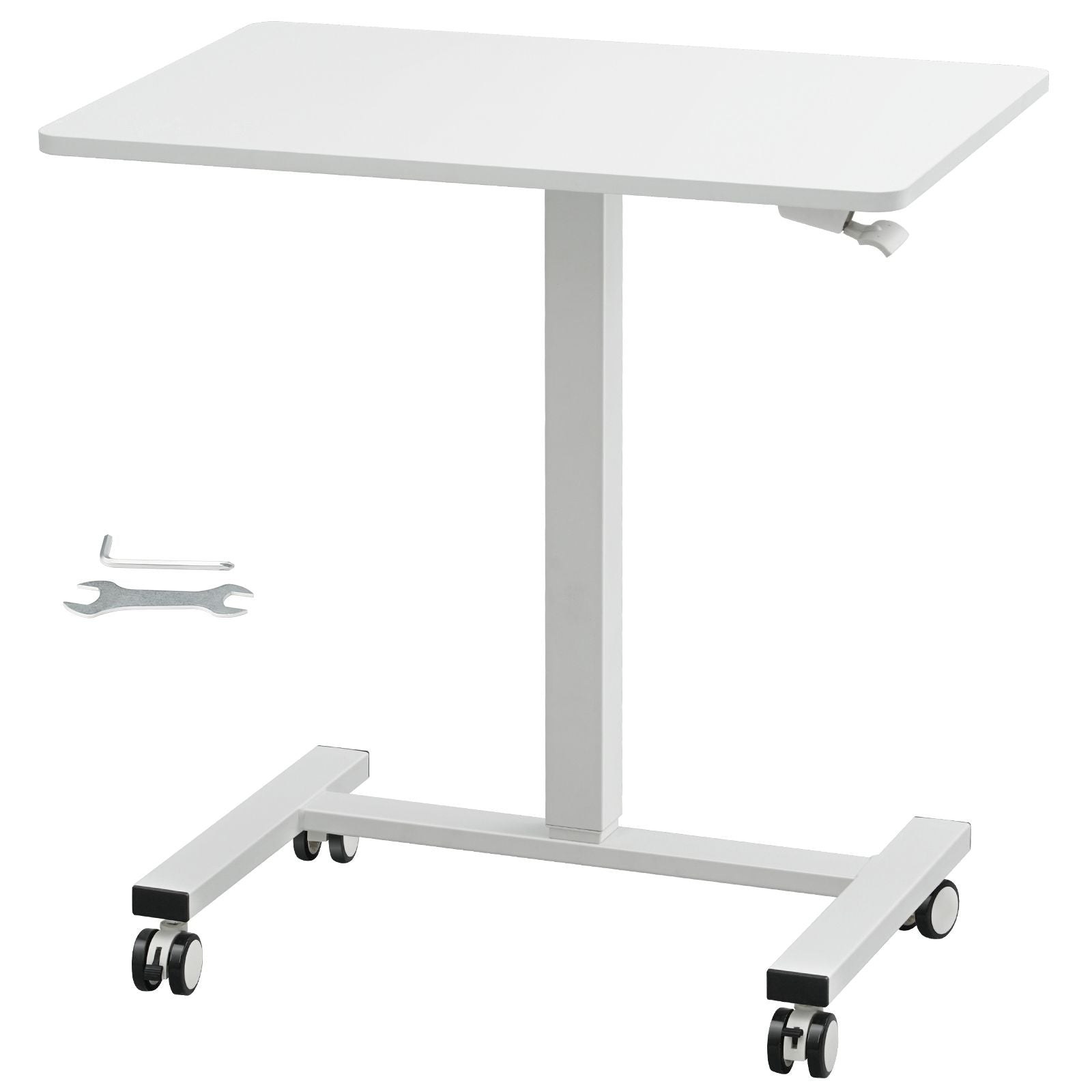
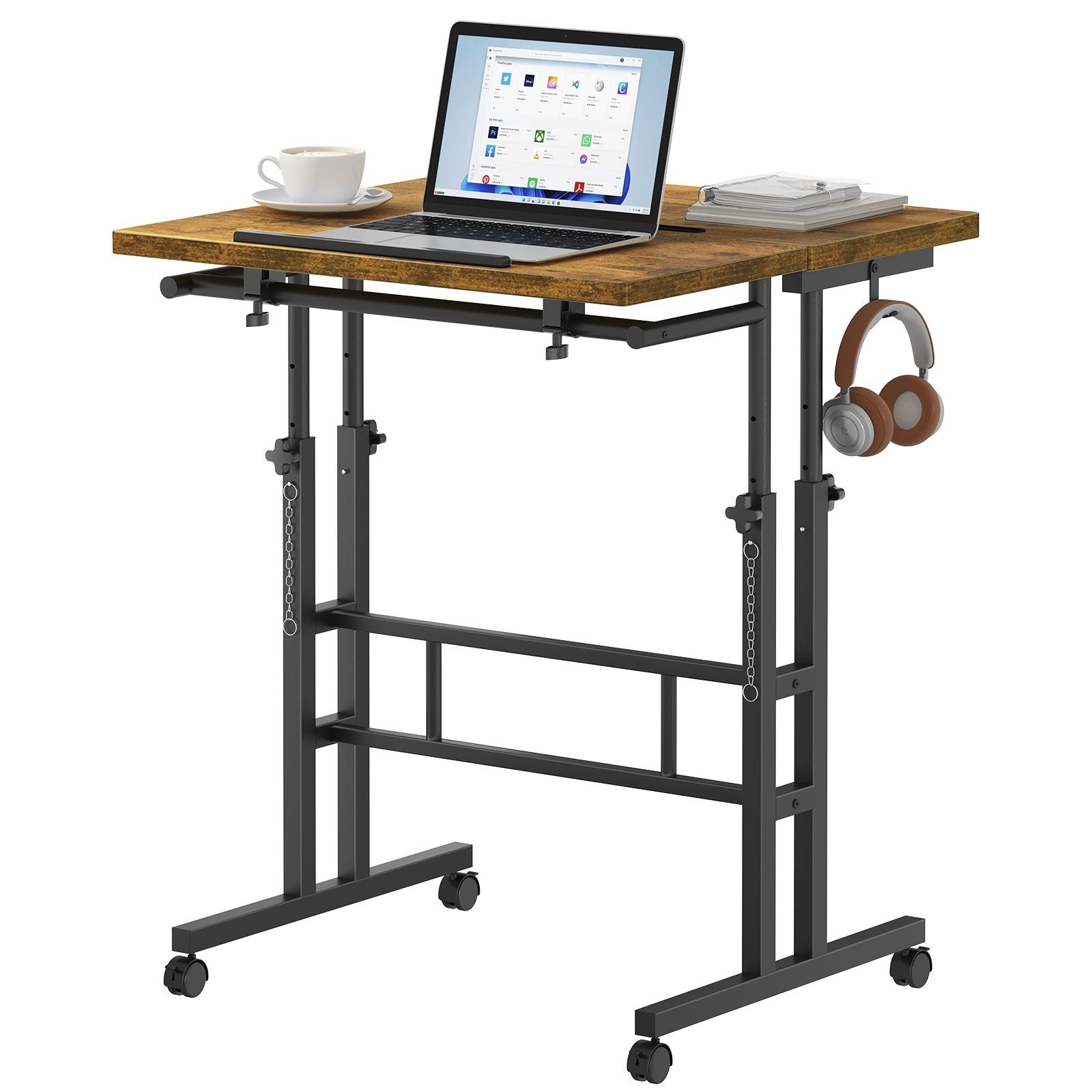
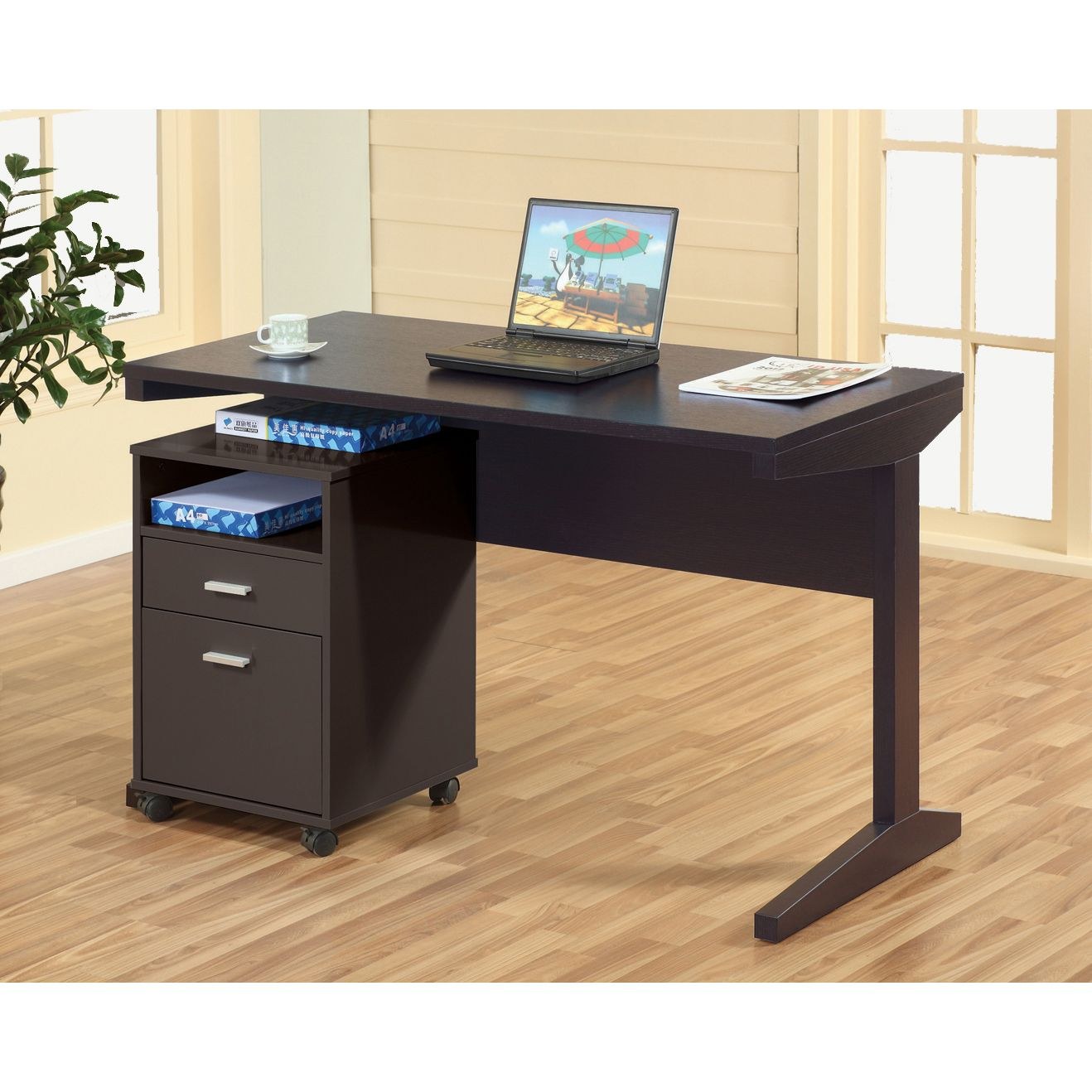
A desk with a drawer, nearby shelf, or adaptable work surface can reduce the number of cables that need to stay visible. The right furniture does not remove the need for a plan, but it gives that plan somewhere to go. A charging zone can live at the back, a headset can hang to the side, and the actual play area can stay open.
RGD Essentials Market brings together practical desk, storage, and home-office pieces for rooms that do more than one job. Start with the change that makes your setup easier to use today, then add only what supports the way you actually play, work, or study.
Shop practical home office accessories →A Simple Cable Management Checklist
Before you call the setup finished, check four things: can you identify each cable, can you reach the outlet or power strip, can the chair move freely, and can you plug in a daily-use device without pulling on another cord? If the answer is yes, the desk is organized enough to be useful.
Keep the system flexible. Review the route whenever you add a monitor, console, charger, or new desk. A small adjustment at that point is far easier than waiting until extra cords become a tangle again. The best gaming desk cable management is the version you can maintain without dreading it.