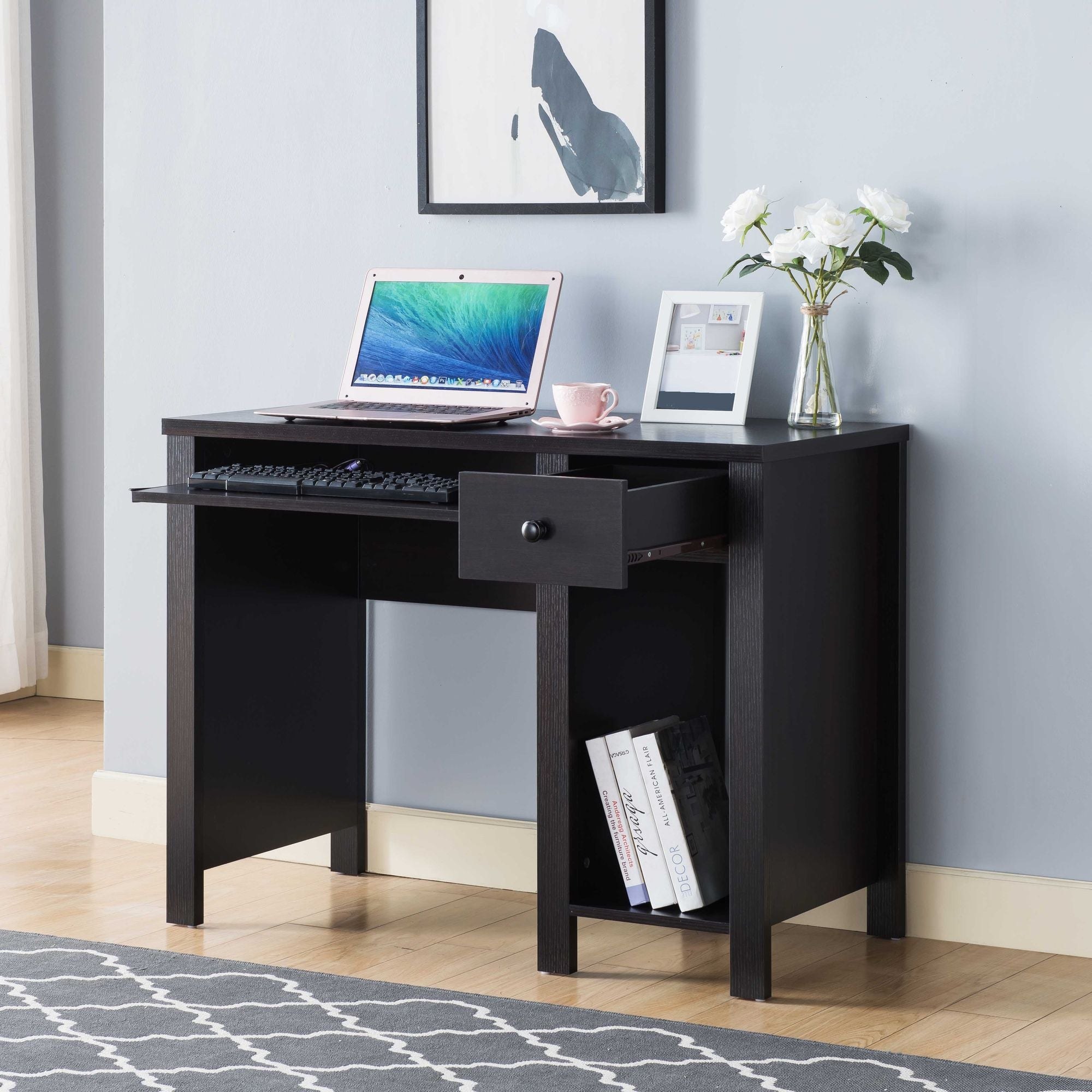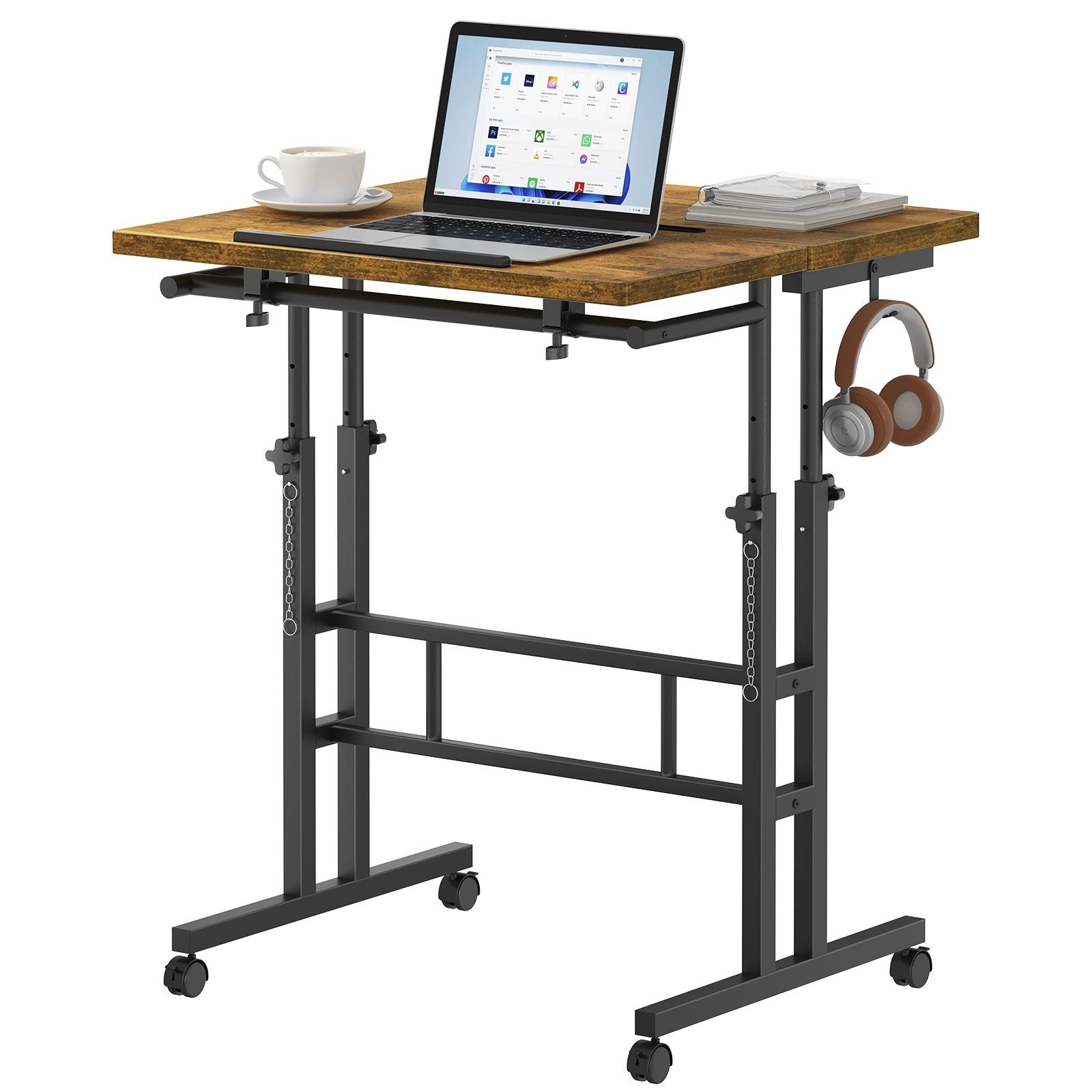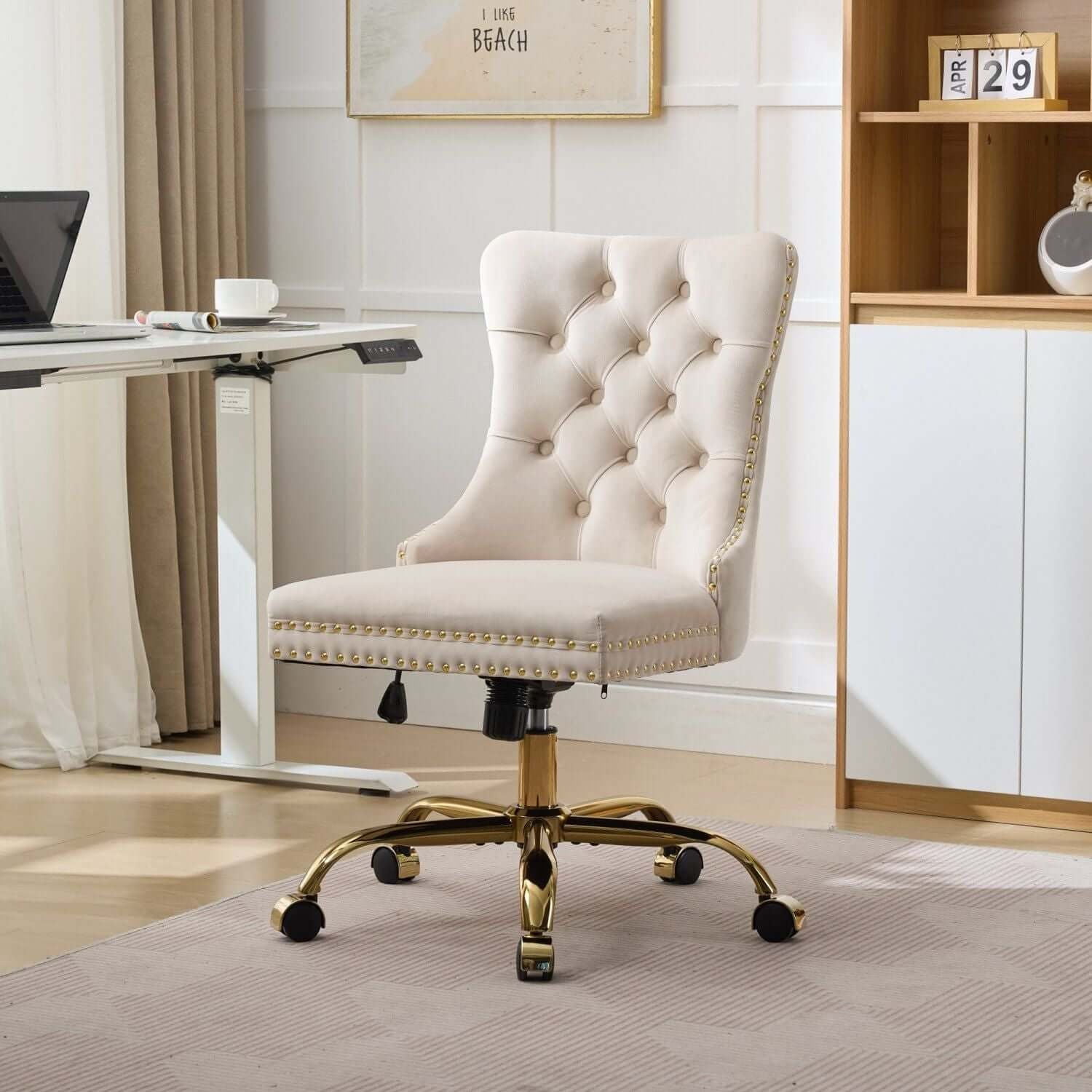
The best desk setup essentials are rarely the flashiest items. They are the pieces that make it easier to sit down, find what you need, focus on the task, and clear the space when the day is over. That matters whether the desk is used for remote work, school, gaming, or all three in the same room.
A useful setup starts with the problems you notice every day. Maybe your monitor sits too low, your charging cable disappears under a notebook, or you need to clear a pile before you can start. Those small frictions are better buying signals than a long list of accessories. Fix the one that interrupts your routine most often, then see what still needs attention.
This guide puts comfort, usable surface area, and simple organization ahead of decorative extras. You do not need to buy every item at once. A desk that fits your body and your room will feel better than a crowded setup filled with things that never earned their space.
1. Start With a Desk and Chair That Work Together
Your desk and chair are the base of everything else. Before comparing accessories, make sure you can sit close enough to the surface without your knees hitting a drawer, your feet losing contact with the floor, or your shoulders creeping upward. A desk can look generous in a product photo and still feel cramped if its depth leaves no room for a screen, keyboard, and your normal hand position.
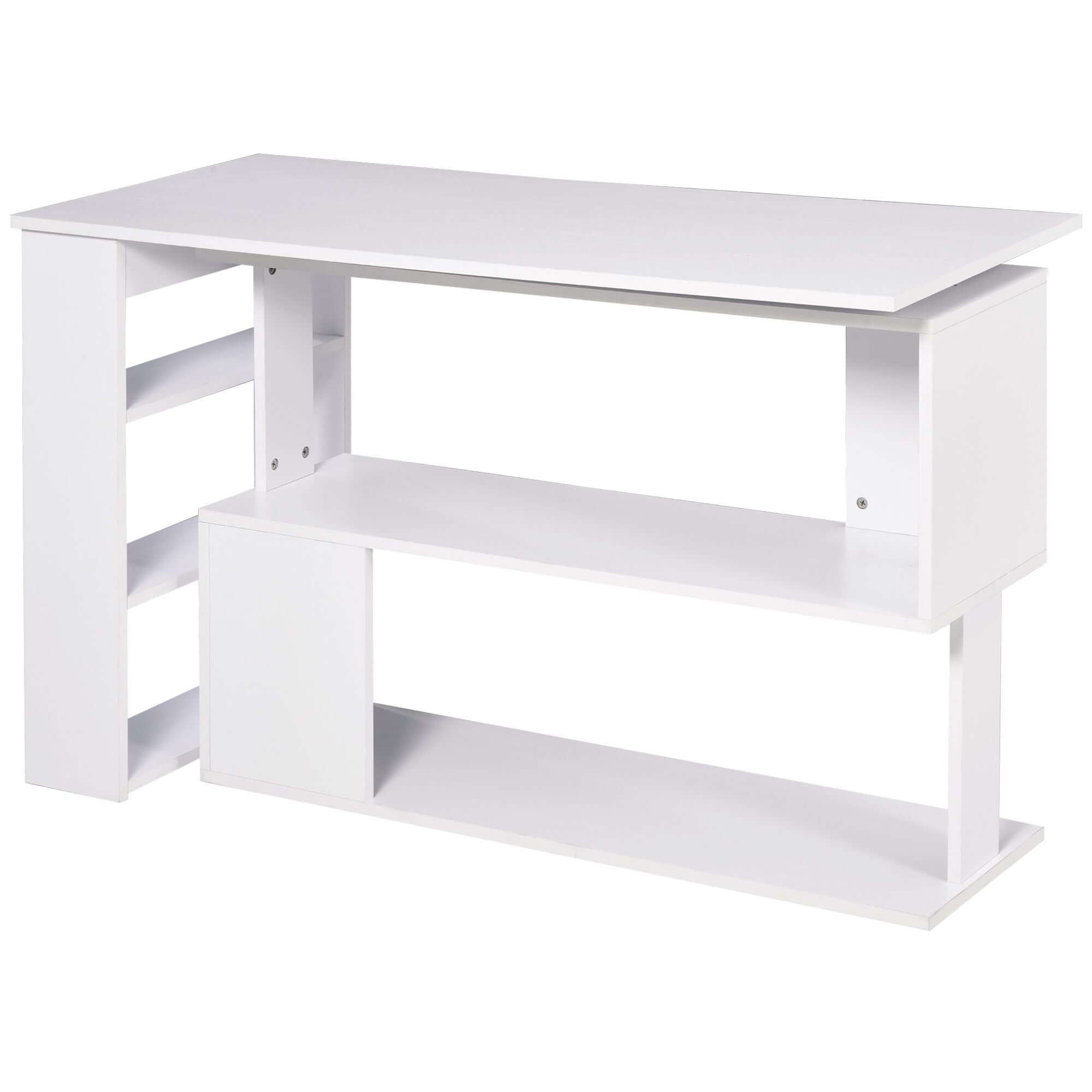
Think about the work you actually do. A laptop-only setup needs less depth than a large monitor, keyboard, mouse, and notebook. If the same room needs to support gaming or study, an L-shaped desk or a desk with a nearby shelf can create separate zones without adding a second table. The aim is not a perfect showroom. It is a surface with enough clear space for your everyday rhythm.
Adjustability is helpful when more than one person uses the desk or when your routine changes during the day. A chair that lets you change height and supports your normal sitting position can make a bigger difference than an extra gadget. If your feet do not rest comfortably once the keyboard is at a useful height, a simple footrest can be more useful than forcing the chair lower.
Before you order a desk, sketch the room on paper or use painter's tape to mark its footprint. Include the space needed to pull the chair out, open nearby drawers, and walk to the door. This quick test catches a common mistake: choosing furniture that fits against one wall but makes the rest of the room feel like an obstacle course.
For more detail, see OSHA's desk workstation guidance.
2. Put the Screen and Keyboard in the Comfortable Zone
A clean desk still will not feel good if the screen and keyboard force you into an awkward position. Start by placing the monitor directly in front of you, rather than off to one side. Then move the keyboard close enough that your elbows can stay near your body instead of reaching forward. The small changes are worth making before you decide you need a new chair, desk, or monitor arm.
Screen height is personal, so avoid chasing an exact measurement. The useful test is whether you can read comfortably with your head balanced over your shoulders rather than tipped sharply up or down. A riser or monitor arm can free up surface space, but it should fit the display's weight, mounting pattern, and the desk edge. If it does not, a stable stand or the monitor's original base may be the smarter choice.
Laptop users have one extra choice to make. If the laptop is your main screen for long stretches, a separate keyboard and pointing device give you more freedom to raise the screen while keeping your hands where they belong. You can build gradually. First get the screen and keyboard relationship right, then decide whether an accessory actually solves a remaining problem.
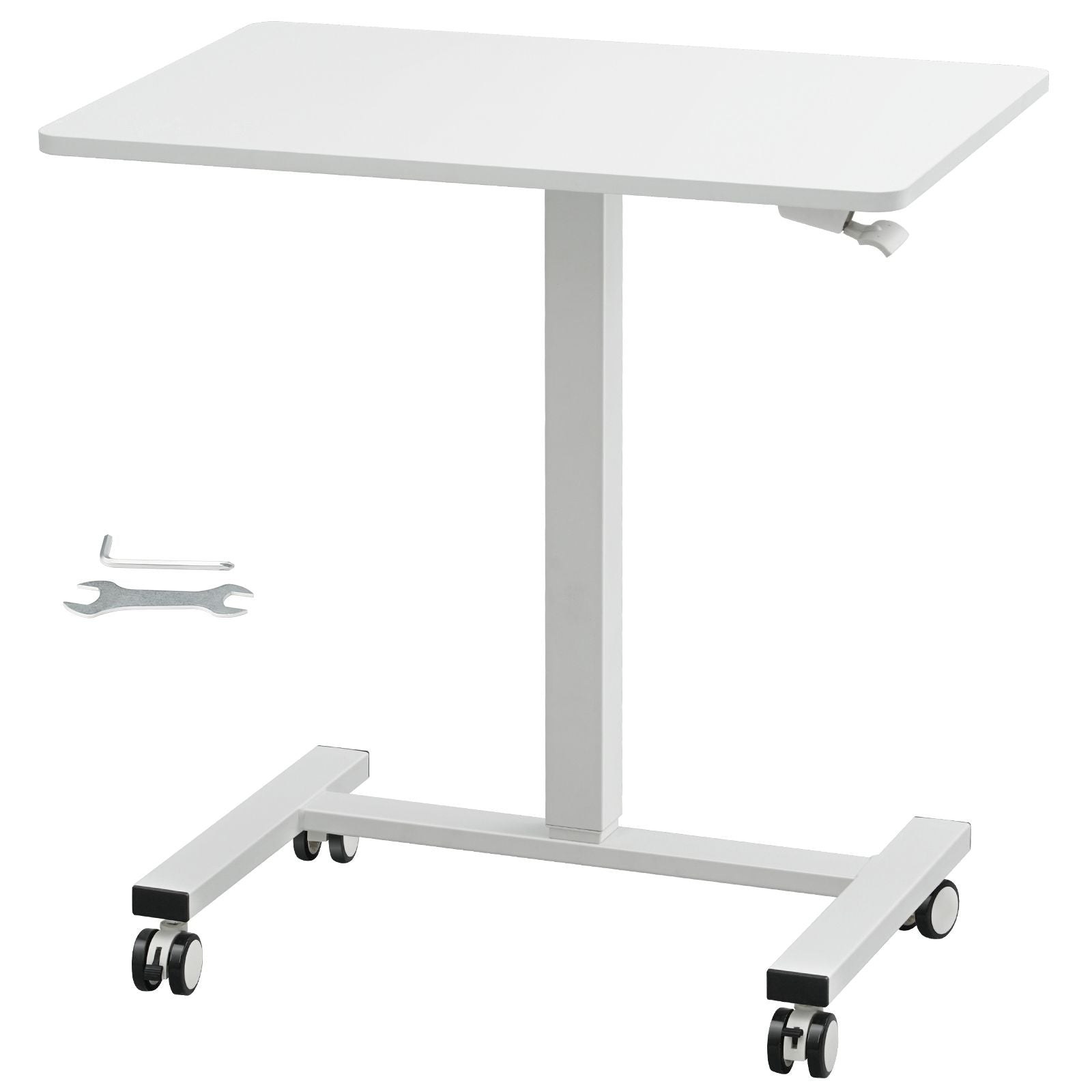
Give the arrangement a real test before calling it finished. Work, study, or play at the desk for a normal session, then notice where you lean, where your wrists bend, and what you keep reaching for. A useful setup is one you can use without constantly making tiny adjustments. Move the equipment first, because rearranging often solves more than buying a new accessory.
For more detail, see OSHA's keyboard placement guidance.
3. Protect the Clear Space in Front of You
The open area in front of the keyboard is one of the most valuable parts of a desk. It gives your hands room to move, creates a landing spot for a notebook or controller, and makes the entire setup easier to reset. Protect it by deciding which items need daily access and which can live somewhere else.
Keep the active tools close, such as your keyboard, mouse, notebook, phone, or controller. Backup cables, packaging, manuals, spare batteries, and rarely used adapters usually do not belong on the surface. A drawer, a small bin, or a nearby shelf is enough. The goal is not to hide every object. It is to stop the desk from becoming permanent storage for items that interrupt the main task.
A desk mat can help define the working zone, especially if you switch between a keyboard, mouse, and handwritten notes. Choose one that leaves room around the edges rather than covering every inch of a compact desk. If your surface already feels crowded, gaining clear space is more valuable than adding a larger mat or another desktop stand.
Create one small landing zone for the things that show up briefly during the day. A coaster, shallow tray, or clear corner can hold a drink, mail, or a phone while you are working. It sounds minor, but a temporary place keeps those items from settling into the keyboard area or disappearing under a stack of notes.
Explore practical home office accessories →4. Give Power and Charging One Predictable Home
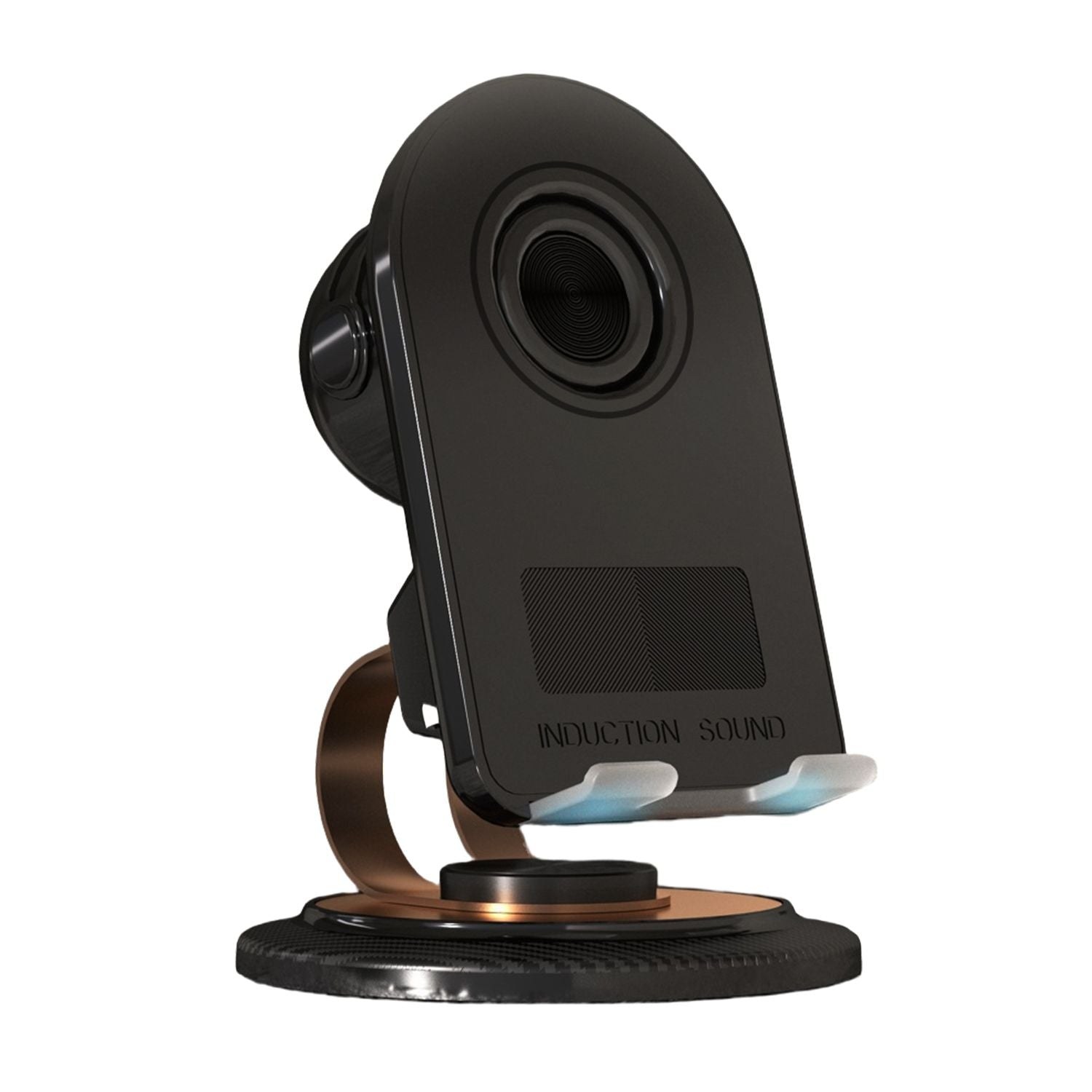
Charging is where many tidy setups fall apart. A phone cable, headphones, a mouse, a controller, and a laptop adapter can quickly spread across the desk if each one gets plugged in wherever there is an open spot. Instead, pick one rear corner or side edge as the charging zone and route the daily cables there.
Keep only the leads you use most often within reach. That might be a phone cable and a headset cable, or it might be a laptop charger and a controller cable. Store the extras rather than leaving every possible connector on display. A small stand can keep a phone visible without placing it in the middle of your keyboard and mouse area.
Check cables before you hide them. They should have enough slack for normal movement, but not so much that they drop into the chair path or become a knot behind the desk. If a cable must cross an open area, make it easy to trace and avoid running it where a chair wheel or foot will catch it.
Labeling is optional, but grouping by purpose is not. Keep display and power cables on their own route when possible, and keep short charging leads near the place where devices rest. When something stops working, you will be able to follow a single cable without pulling apart the entire back of the desk.
5. Use Storage to Make Resetting Easier
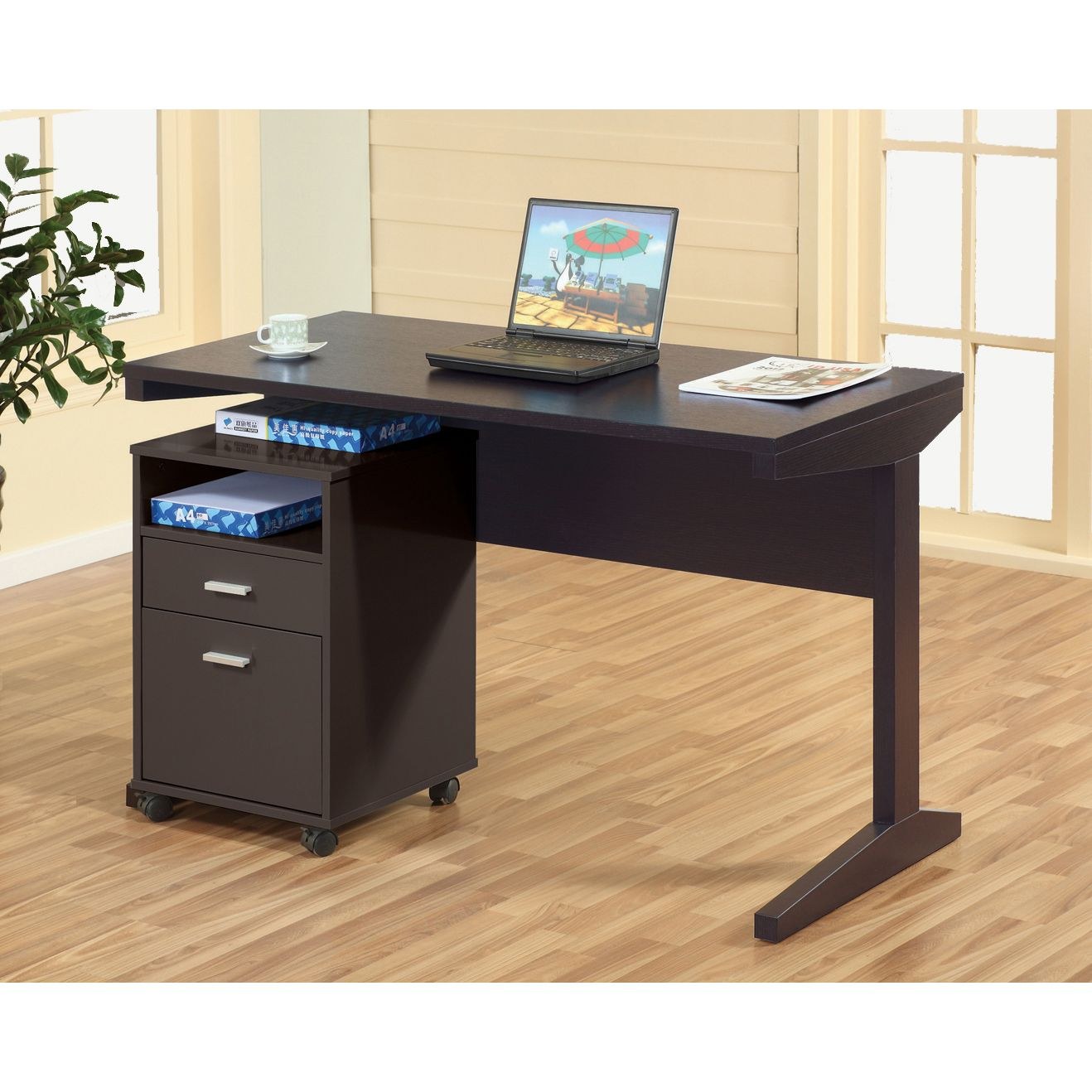
Good desk storage should shorten cleanup, not create another project. Start with the few things that repeatedly drift across the surface: extra cables, small tools, glasses, notebooks, game accessories, or paperwork. Give each group a nearby home that is easy to reach from the chair.
Open shelves are useful for items you need to grab often. Drawers or lidded bins work better for visual clutter, such as adapters, backup chargers, and miscellaneous supplies. Keep the storage shallow enough that you can see what is inside. A deep box filled with mixed items tends to become a delayed version of the same pile you were trying to solve.
If you work in a small room, use the vertical space before adding another floor-level piece. A compact shelf, desk with drawers, or under-desk hook can take pressure off the desktop and preserve the chair path. You should be able to slide in, stand up, and move around the room without stepping around a basket of cables or supplies.
6. Add Lighting Only After the Basics Feel Right
Lighting can make a desk easier to use, but it should have a simple job. A focused lamp helps with reading, writing, and finding small items without turning on every light in the room. If you use a monitor, check for glare before buying a new light. Often, moving an existing lamp or changing its angle is enough.
Avoid putting a bright source directly in your line of sight or behind the screen where it creates reflections. The best position is the one that lights the task without asking your eyes to work around it. A calmer desk is usually more useful than one with multiple colored lights competing with the screen.
Decorative touches can come last. One personal item, a small plant, or a favorite object can make the space feel like yours, but it should not take the only open area you have. When the desk already works well, style becomes a finishing detail instead of another source of clutter.
Check the desk at the time of day you use it most. Morning sunlight, a nearby window, and overhead lights can change how comfortable the same arrangement feels. If glare appears only at certain hours, a small repositioning or blind adjustment may do more than another piece of desk equipment.
A Simple Order for Building Your Setup
If you are starting from scratch, work in this order: first make the desk and chair comfortable, then place the screen and keyboard, then organize charging and cables, then add storage. This sequence keeps money and attention on the parts of the setup that affect every day. It also makes it easier to notice when you have already solved the problem.
Measure before you buy. Check desk width and depth, the usable space behind the monitor, the thickness of the desk edge if you want a clamp, and the clear path around the chair. A piece that technically fits can still make the room harder to use if it blocks your knees, cables, or movement.
RGD Essentials Market brings together desks, seating, storage, and everyday accessories for spaces that need to do more than one job. Start with the item that removes the most friction from your day, then add only what helps the space stay clear and comfortable.
Take a photo of the desk before you begin and again after a week of using the new arrangement. The comparison makes it easier to see whether the setup is genuinely calmer and more useful, or whether new items have simply moved the clutter. Keep what works, return what does not, and let your own routine make the next decision. A useful desk should make it easier to start, keep going, and put the room back in order without a separate cleanup project at the end of every busy day. That is the standard worth keeping as the space changes over time.
Find a desk that fits a smaller setup →